MCP Setup
Recommended Quick Start
Section titled “Recommended Quick Start”For most users, start from Atlas itself:
- Atlas Settings > MCP
- Atlas desktop first-run setup wizard
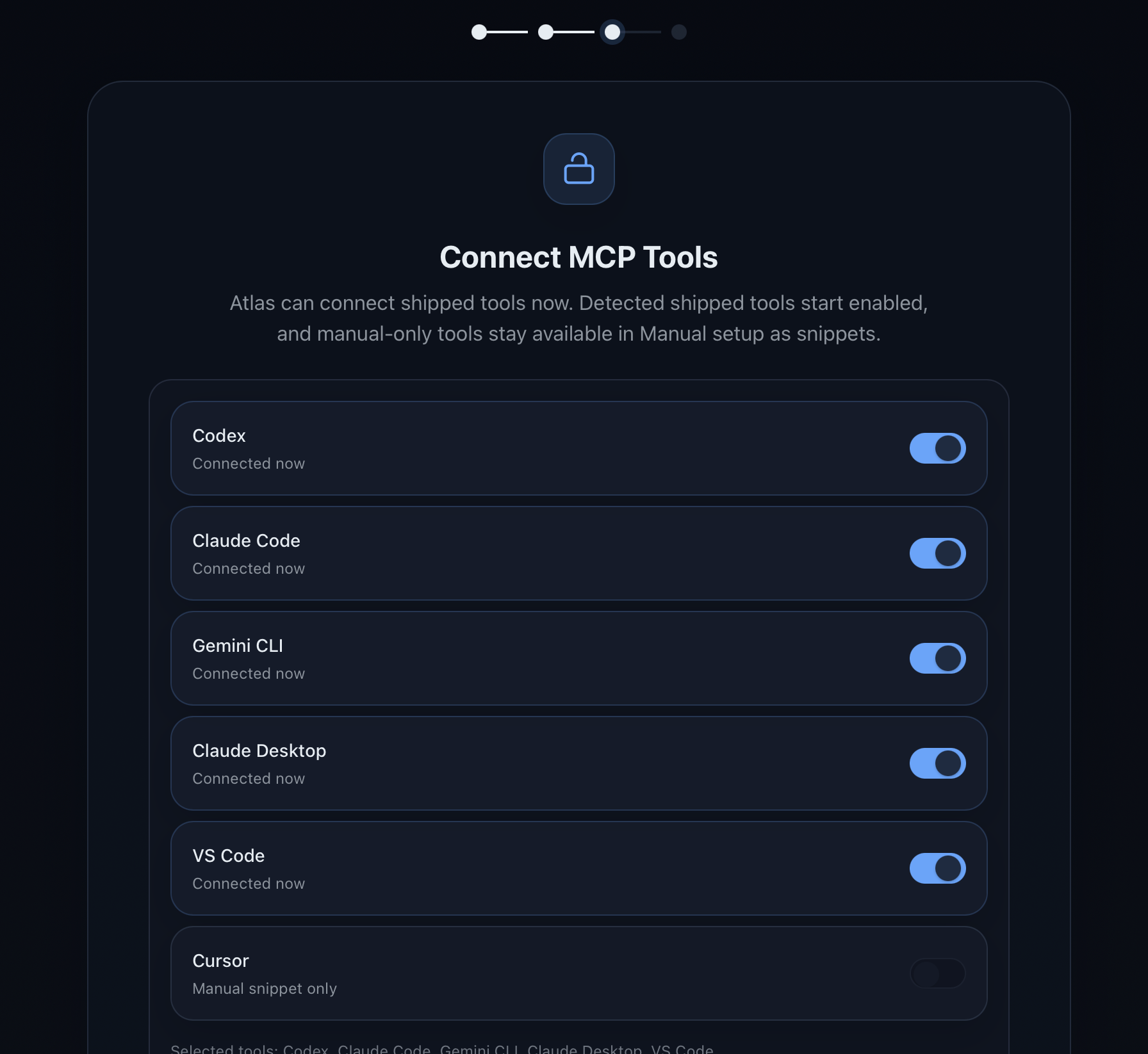
This screen is the app-first MCP path: shipped tools that Atlas can connect now are surfaced as enabled toggles, while manual-only tools remain available as snippet-based setup.
Supported Shipped Agent Targets
Section titled “Supported Shipped Agent Targets”- Claude Code
- Claude Desktop
- Codex
- VS Code
Cursor remains snippet-only until its automatic write path is fully verified.
Atlas UI Surfaces
Section titled “Atlas UI Surfaces”The same setup contract is exposed through:
- Atlas Settings > MCP
- Atlas Desktop first-run setup wizard
Typical User Flow
Section titled “Typical User Flow”- Open Atlas Settings > MCP or continue from the first-run setup wizard.
- Leave enabled the tools Atlas already detects and can connect now.
- Review any manual-only tools shown in the UI and use the provided snippets only if you need them.
- Restart the connected agent tool when Atlas tells you the setup is complete.